 Geld Apps
In short: Geld is a billing app for small businesses in India. It makes bills and GST invoices, prints them on thermal receipt printers or A4, puts a UPI payment QR on them, keeps track of who owes you money, records expenses and purchase orders, shows reports, links staff phones to the owner's phone, and backs everything up to the owner's own Google Drive. All data is kept on the phone.
1. Billing and invoices
- Bill in a few taps. Tap items from a quick-add list, search your list as you type, or scan a product's barcode with the camera.
- Discounts on any line or on the whole bill, in rupees or as a percentage.
- GST per item. Set a GST rate on each item; GST is worked out on the value after discount. Add your GSTIN to your shop profile and the A4 bill is titled Tax Invoice.
- Mark a bill paid as you save it (cash, UPI or card) in one tap, or leave it unpaid and collect later, for walk-ins and named customers alike.
- Invoice numbers count up automatically (INV-0001, INV-0002…). Each linked counter phone has its own series, such as C1-0001, so numbers never clash even offline.
- Drafts. Keep several bills open at once at a busy counter and finish each when the customer is ready.
- Bill history with search by customer, invoice number or amount, filters for paid or due, date and who billed it, and sorting by date or size.
- Undo after deleting, and a warning before leaving a bill with unsaved changes.
2. Items, services and stock list
- Items and services with rate, unit, discount, GST and category.
- Services with materials. A service (for example an electrician's fitting job) can include the materials it uses. On each bill, choose whether the materials show line by line or bundled into the service.
- Minimum charge for services, for example "₹400 an hour, ₹1,000 minimum".
- Categories you can rename, merge or clear.
- Turn items off that you no longer sell without deleting them, so old bills stay intact.
- Bills keep a copy of each line, so changing a price later never changes a bill already made.
3. Barcodes and labels
- Scan to bill with the phone's camera. Scanning the same product twice adds it twice, which suits a basket with two of something.
- Unknown barcode? Geld offers to add it to your list there and then, so the next scan just works.
- Make your own barcodes for loose or unbranded goods. Geld creates standard EAN-13 in-store codes that cannot clash with a manufacturer's barcode.
- Print labels on A4 sheets (24 per page) or one per label on a roll printer, with the price, unit and shop name if you want them.
- Barcodes are looked up only in your own list; Geld never sends them to the internet.
4. Printing and sharing
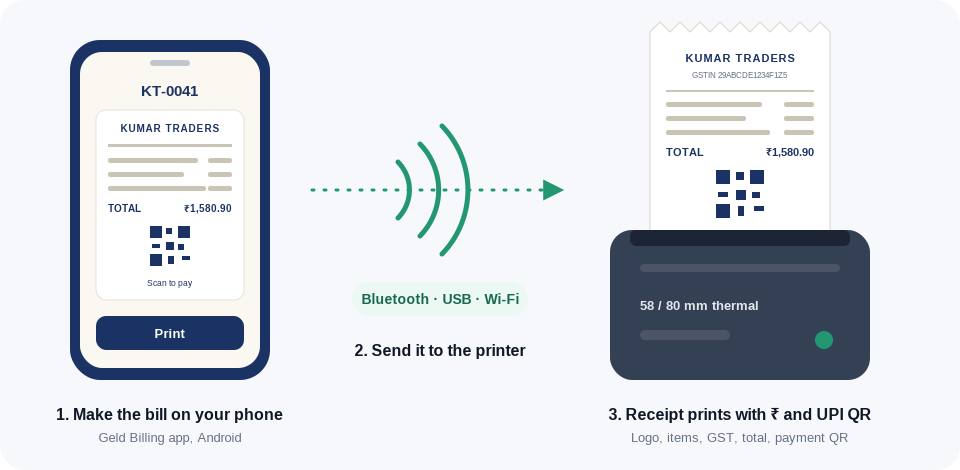
- Thermal receipt printers, 58mm (2-inch) and 80mm (3-inch), that use the common ESC/POS standard. Connect by Bluetooth, USB (OTG) or Wi-Fi/LAN (network printers on port 9100).
- A4 and A5 through Android's own printing, to any printer your phone can reach, or save as PDF.
- Receipts print as a sharp image, so your logo, the ₹ sign and the payment QR all come out on a thermal printer.
- Share bills as a PDF or an image, in receipt or A4 shape, on WhatsApp, email or any app. The share message can carry your contact and social media links.
- Counter slips and payment receipts. Short slips with a barcode of the invoice number; scan a slip later to open its bill. Each phone chooses whether to print them always, offer them, or never.
- Share one printer between phones. One phone can act as the print station and others in the shop send their prints to it.
- If the printer is busy, Geld tries again automatically for a few seconds and tells you if it does not answer.
- A test slip checks your printer set-up, and a built-in guide lists compatible printers and paper rolls.
5. Your letterhead
- Shop name, logo, address, phone, email, website and GSTIN on every bill.
- Logo left, centre or right, beside or above the name, with its own alignment for the heading text.
- Instagram, Facebook, WhatsApp and YouTube on one short line at the foot of the bill.
- Your own footer note, such as a returns policy or a thank-you.
- Choose whether the logo prints on thermal receipts, and set the default bill layout and share type.
- The small "Billed with Geld" line can be turned off.
6. Payments and UPI
- UPI QR on every bill. Type your UPI ID once; Geld makes the QR with the amount and invoice number filled in. It works with any UPI app (Google Pay, PhonePe, Paytm, BHIM and others).
- Show the QR on screen for the customer to scan, then record the payment in one tap.
- Payment modes: cash, UPI, card, bank transfer and credit, plus any of your own (for example a wallet or cheque).
- Part payments. Take money against a bill in instalments; each bill shows paid, part-paid or unpaid.
- Payment receipts are numbered from the bill (INV-0009/R2) and can be printed or shared.
Geld does not process payments or hold money. Customers pay straight into your own UPI account.
7. Customers and credit
- Customer book with name, phone and address. Call a customer from the app.
- Each customer shows total billed, total received and what is outstanding, with their bills.
- Outstanding on the Home screen shows how much your customers owe you in total.
- Set a default customer for walk-in sales.
8. Expenses
- Record spending with a category, amount, payment mode and note.
- Attach photos or files of receipts and bills.
- Expenses entered on a staff phone arrive at the owner's phone as claims to approve or reject; only approved expenses count in reports.
9. Purchase orders
- Write orders to your suppliers and keep a supplier list.
- Track each order as draft, sent, received or cancelled.
- Share or print an order as a PDF, with your own terms, your links, and the option to hide rates.
10. Day book (cash drawer)
- Open the day with the cash in the drawer.
- Close it with a count. Geld shows what should be there and whether the drawer balances.
- Past days stay in the day book.
11. Reports and insights
- Today, this week, this month, or any dates you pick.
- Billed, collected, still owed, discount given, expenses and net cash.
- How you were paid: the split by cash, UPI, card and other modes.
- Items billed, and who billed it when staff phones are linked.
- Trend charts compared fairly with the previous period at the same point, so the 3rd of the month is compared with the 3rd of last month, not the whole month.
- What we noticed: plain-language insights such as your best weekday, busiest hours and top customer, shown only when there is enough history to back them up.
12. Staff, devices and roles
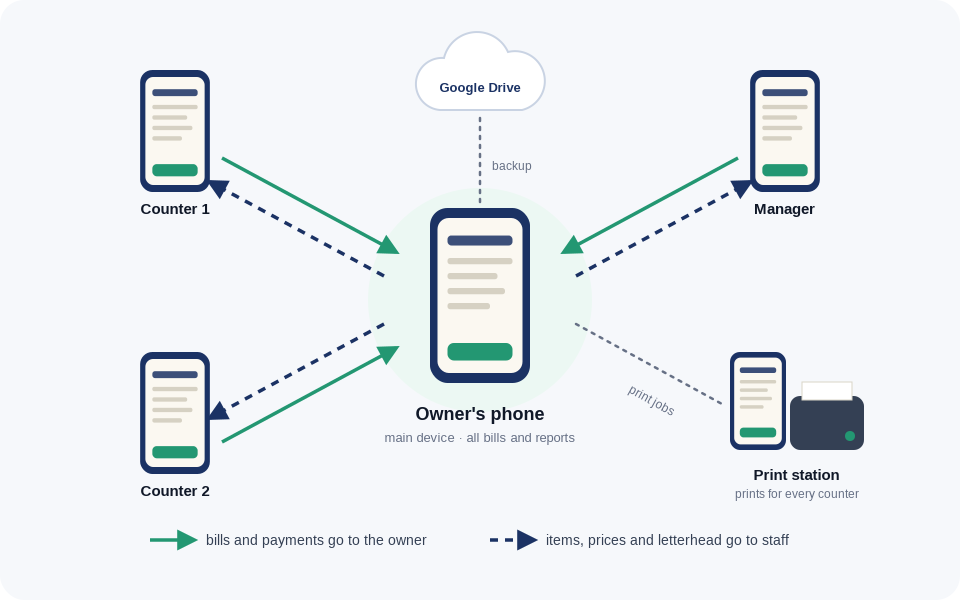
- Link a phone by QR code, much like linking WhatsApp on another device.
- Bills made on a counter phone travel to the owner's phone, and payments or corrections made by the owner travel back. Phones that were offline catch up when they reconnect.
- The owner's item list, prices, letterhead and logo reach counter phones automatically.
- Roles: Owner, Co-owner, Manager, Counter staff and Viewer (read-only).
- Permissions per person: for example, whether staff can see only their own bills or all bills, take payments, print, or add expenses.
- Reports and bill lists can be filtered by staff member.
- A shop can have more than one owner, and the shop's books can be handed to another owner.
- Remove a device, or leave a shop, at any time.
Linking devices needs a Google sign-in and an internet connection to pass records between phones. Each phone keeps working offline in between.
13. Backup, restore and export
- Google Drive backup to a private app folder in your own Drive, automatically about twice a day, or whenever you tap Back up now.
- Restore on a new phone by signing in with the same Google account. Geld offers the restore on an empty phone.
- Backup file you can save or send anywhere, and restore from later.
- CSV export of bills, payments, expenses and more, ready to send to your accountant.
14. Offline and privacy
- Your shop's records are stored on your phone, and billing, printing and reports work with no internet.
- Geld Apps does not read or sell your shop's records. See the Privacy Policy for exactly what goes where.
- You can use Geld on one phone without signing in at all.
- Delete your store from inside the app; it removes your data from the phone, your Drive backup and our relay. See Delete your account.
Questions?
See the FAQ, or write to geldapps.official@gmail.com.